Authors: Peiwen Zhang,
Université Paris-Saclay, HCI M1.
1. Goals and Completion Status
Completed the basic functionalities of the Roll A Ball project: moving the ball, collecting objects, and displaying the score.
It can be played and run normally in the Unity Editor, and the interaction and scoring are normal.
2. Environment Information
Operating System: Windows Unity Editor Version: 2020.3.49f1
3. Core Implementation
3.0 Scene and Object Setup
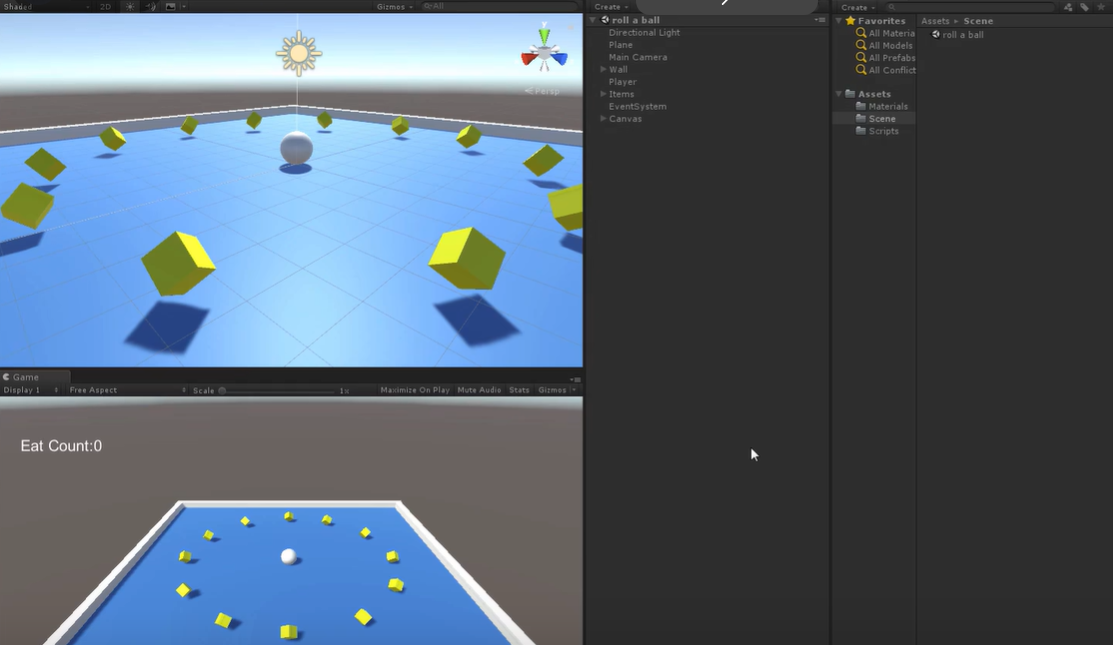
I created a new scene and saved it as the main scene for this project.
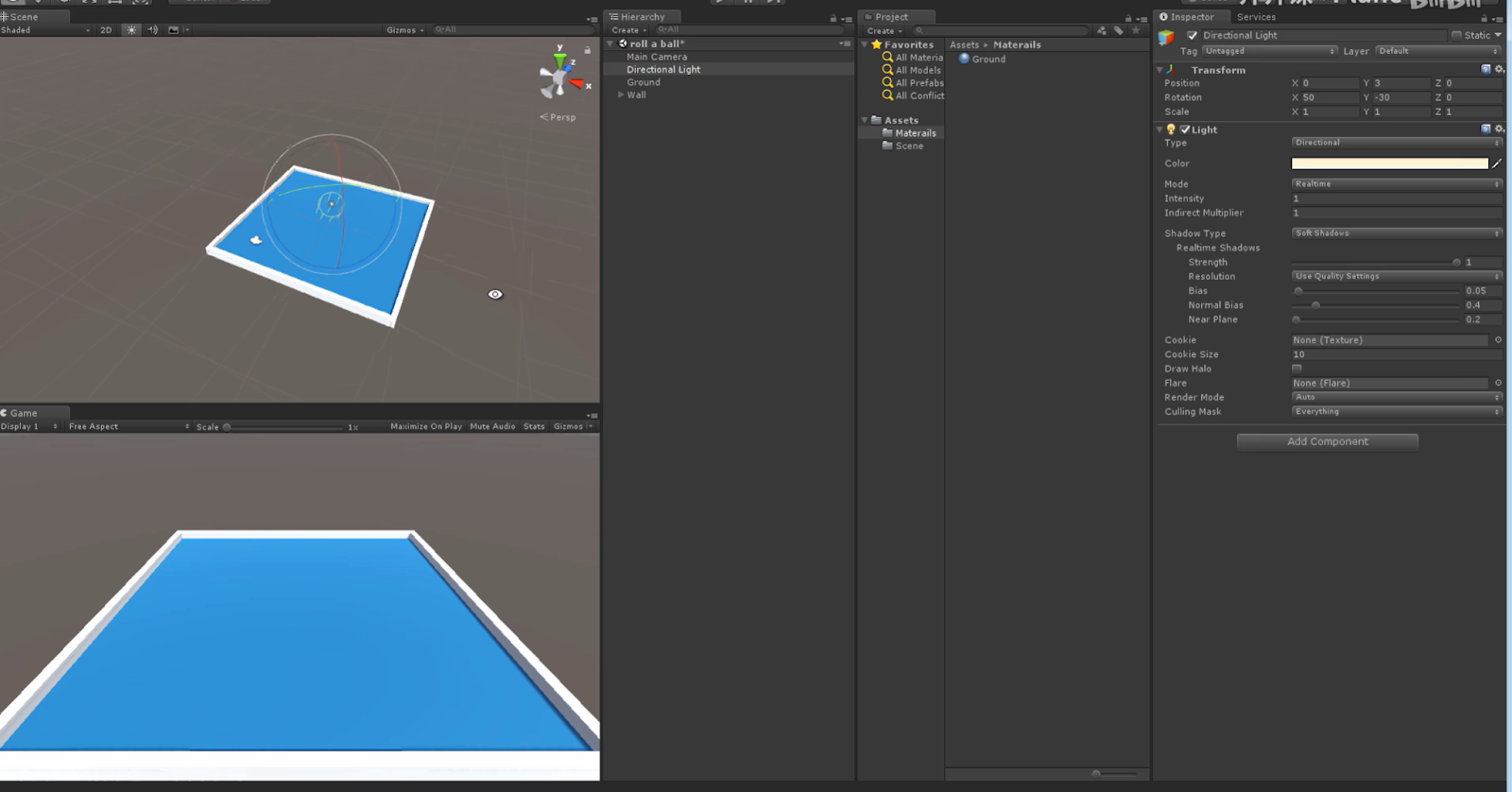
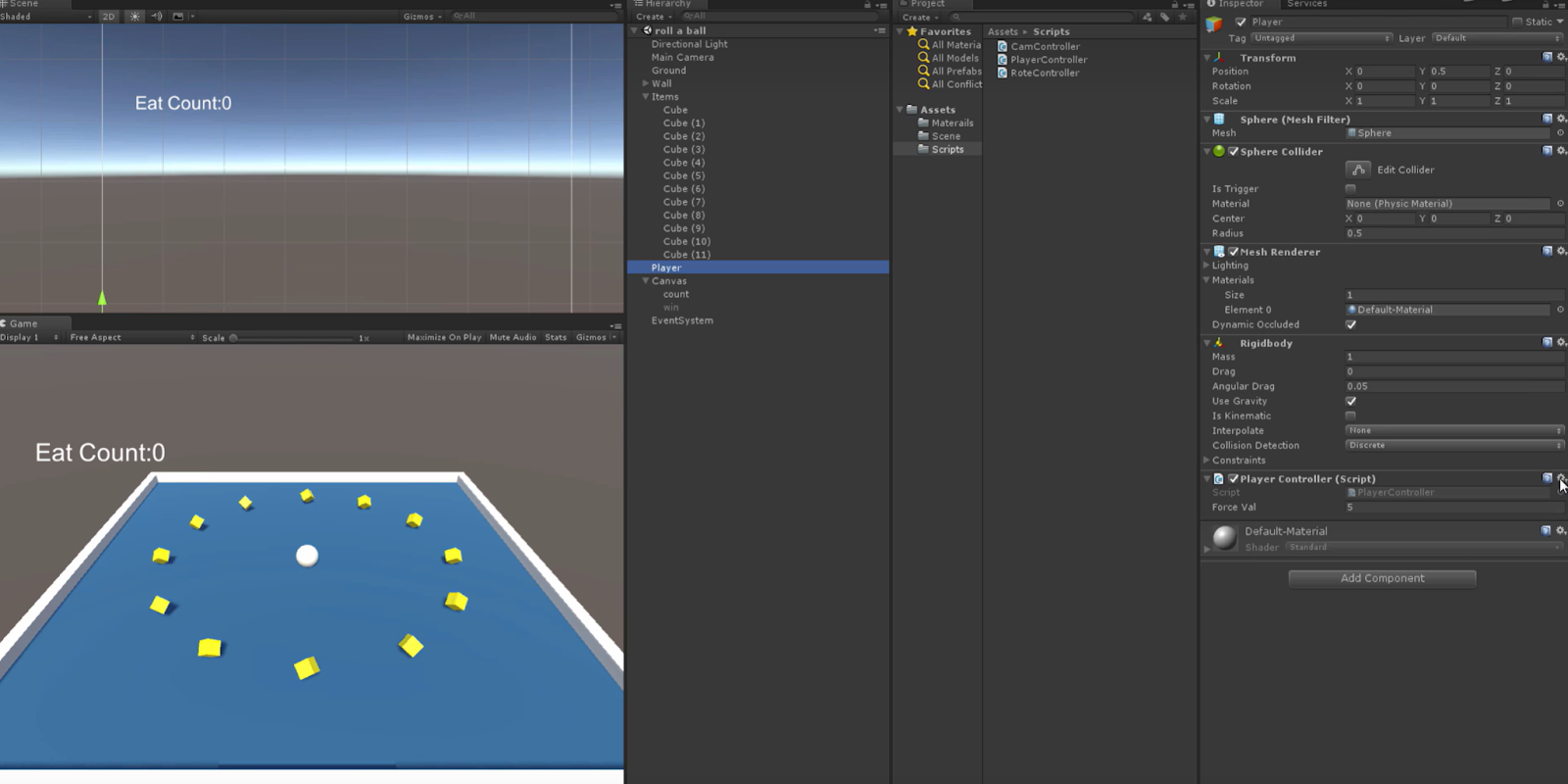
I create a Player (sphere) and place it above the ground as the player control object.
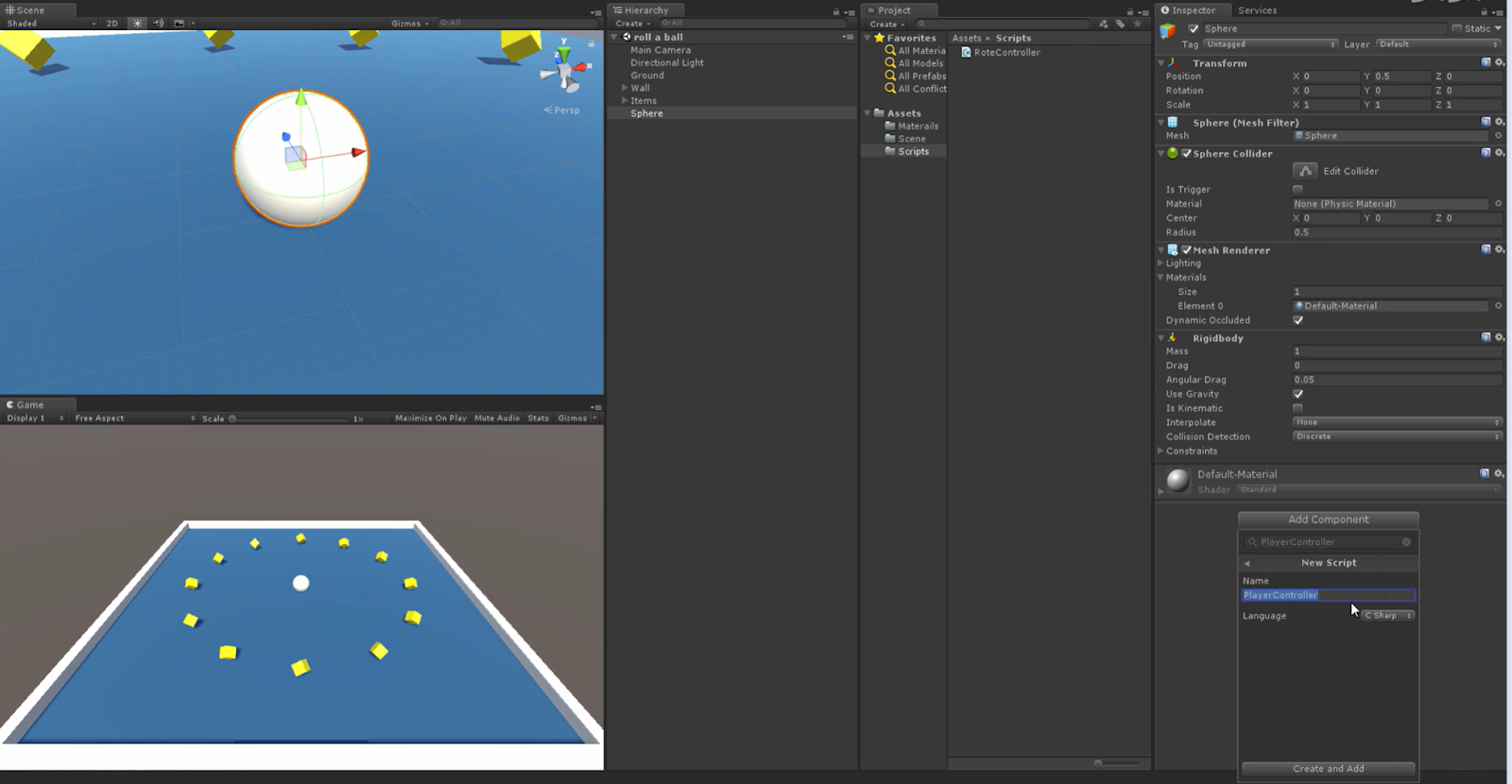
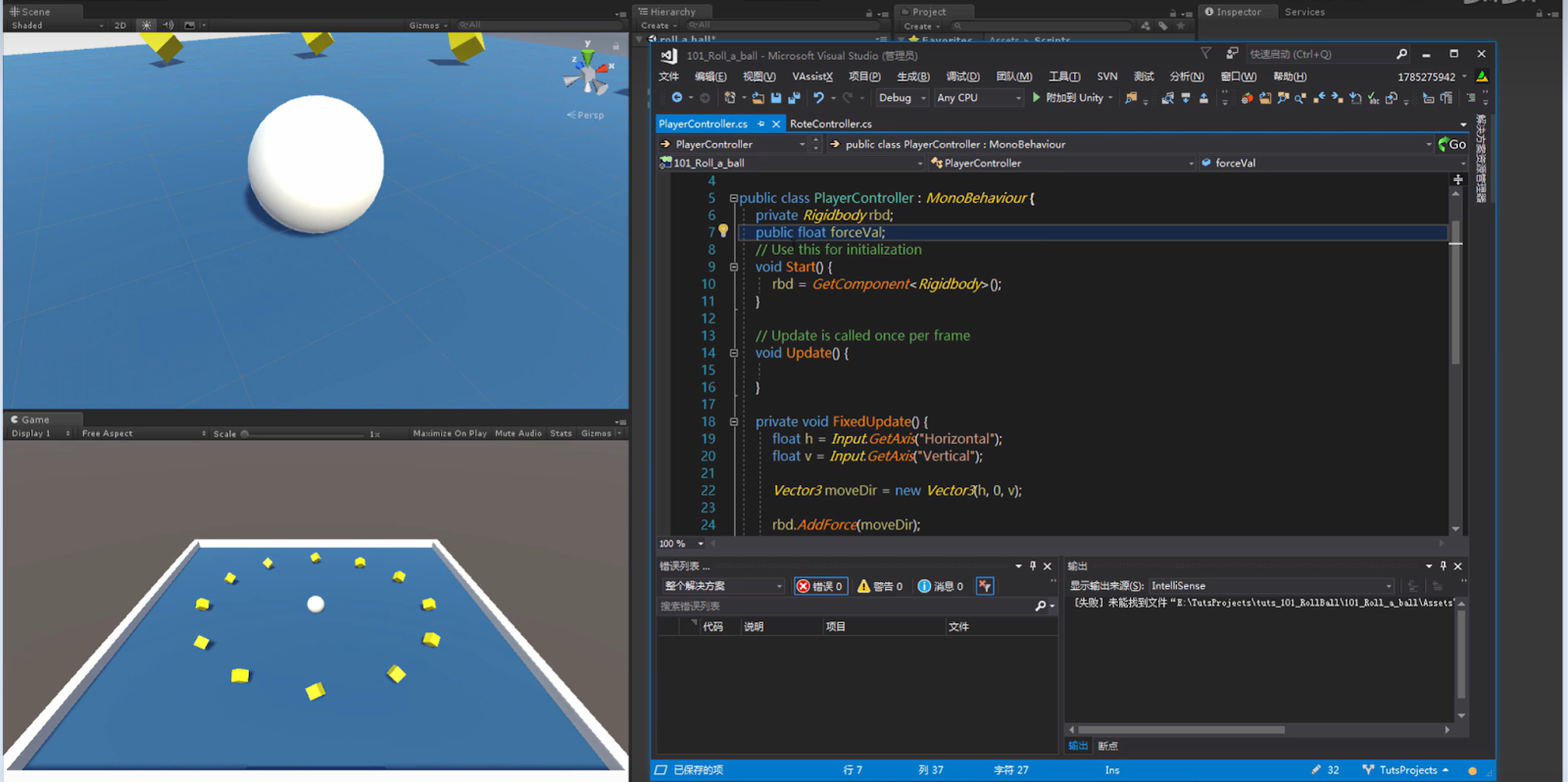
3.1 Player Movement
I confirmed in the scene that the Player (sphere) object has a Rigidbody and control script attached.
Camera follow function set
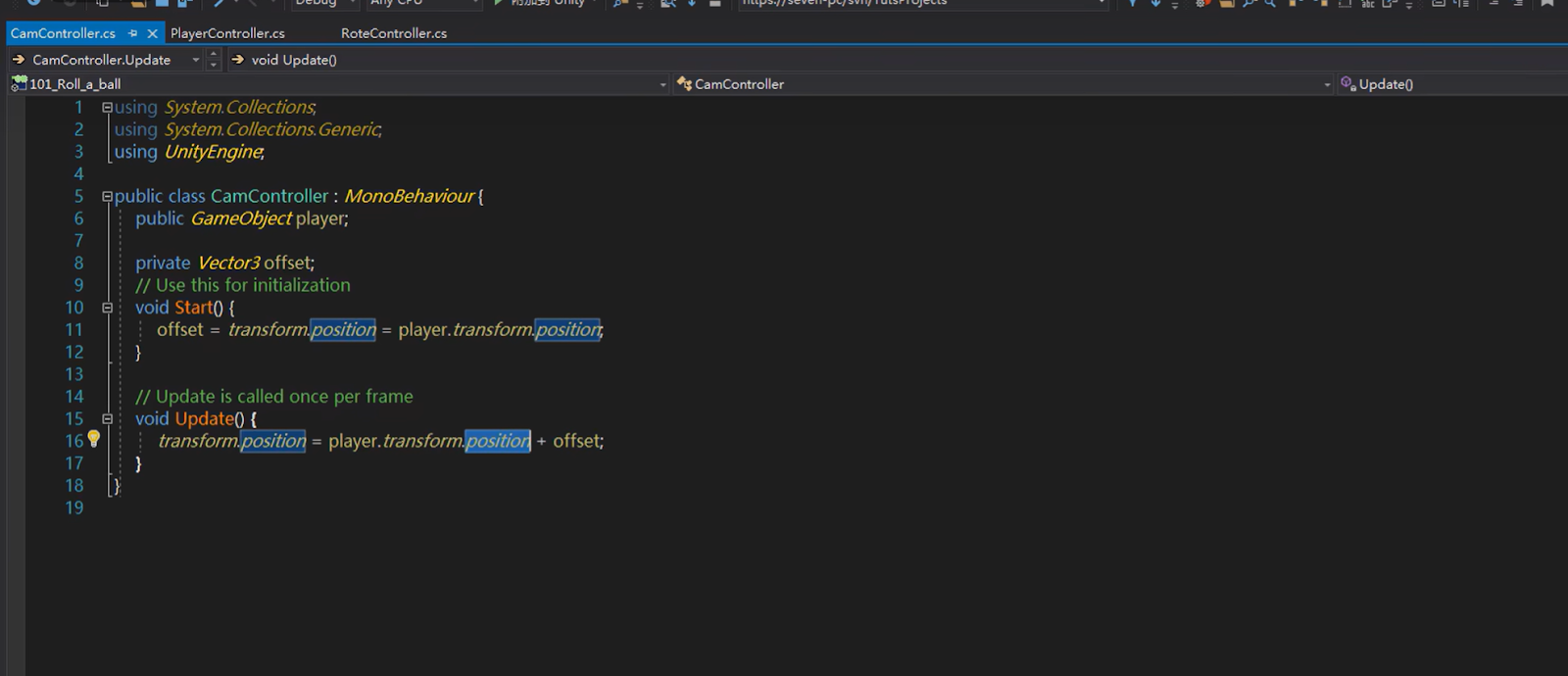
After entering Play mode, I successfully controlled the ball’s movement using WASD or the arrow keys.
3.2 Pickups
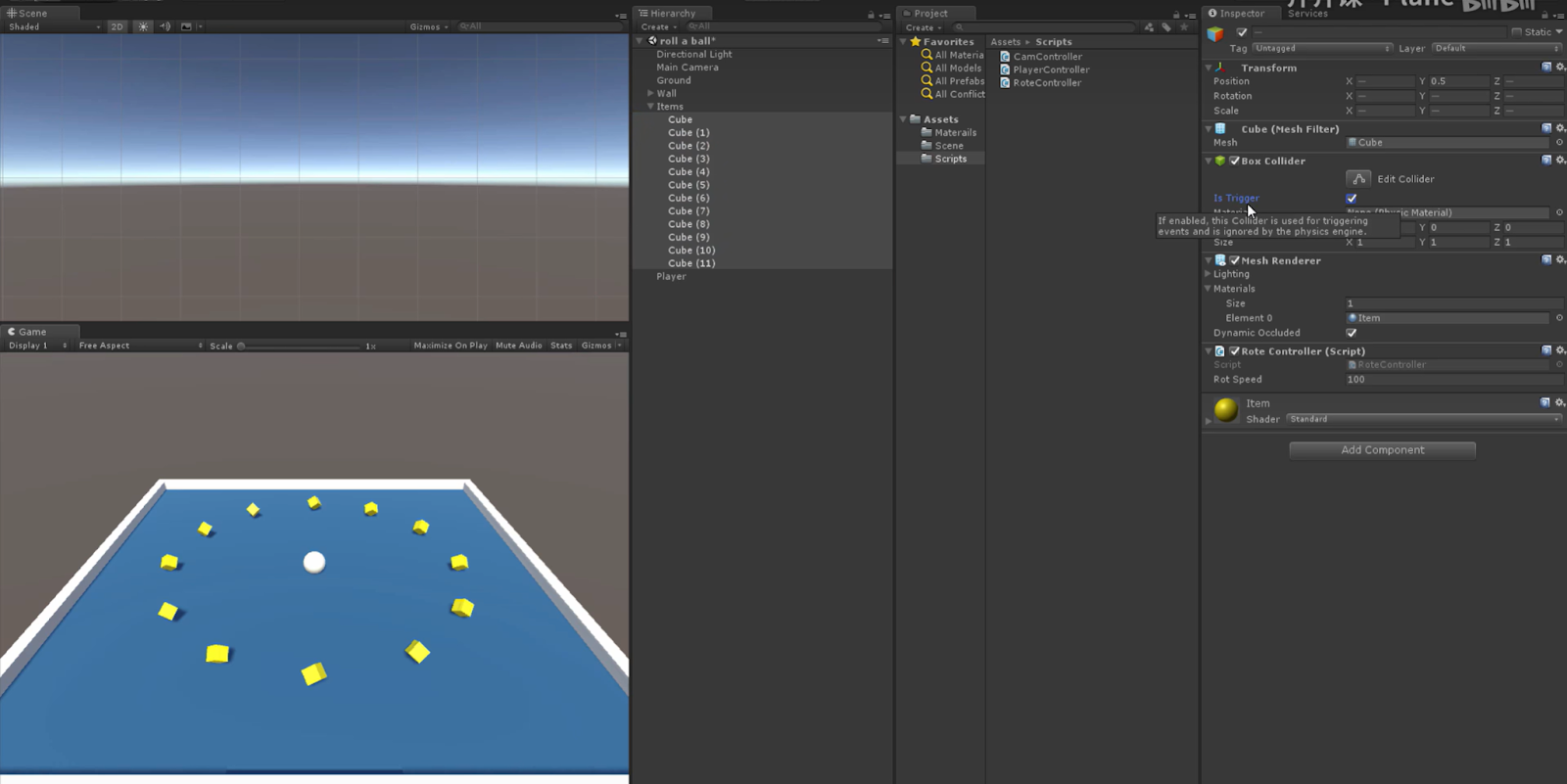
I confirmed that the Collider of each Pickup object has Is Trigger checked to trigger the collection check.
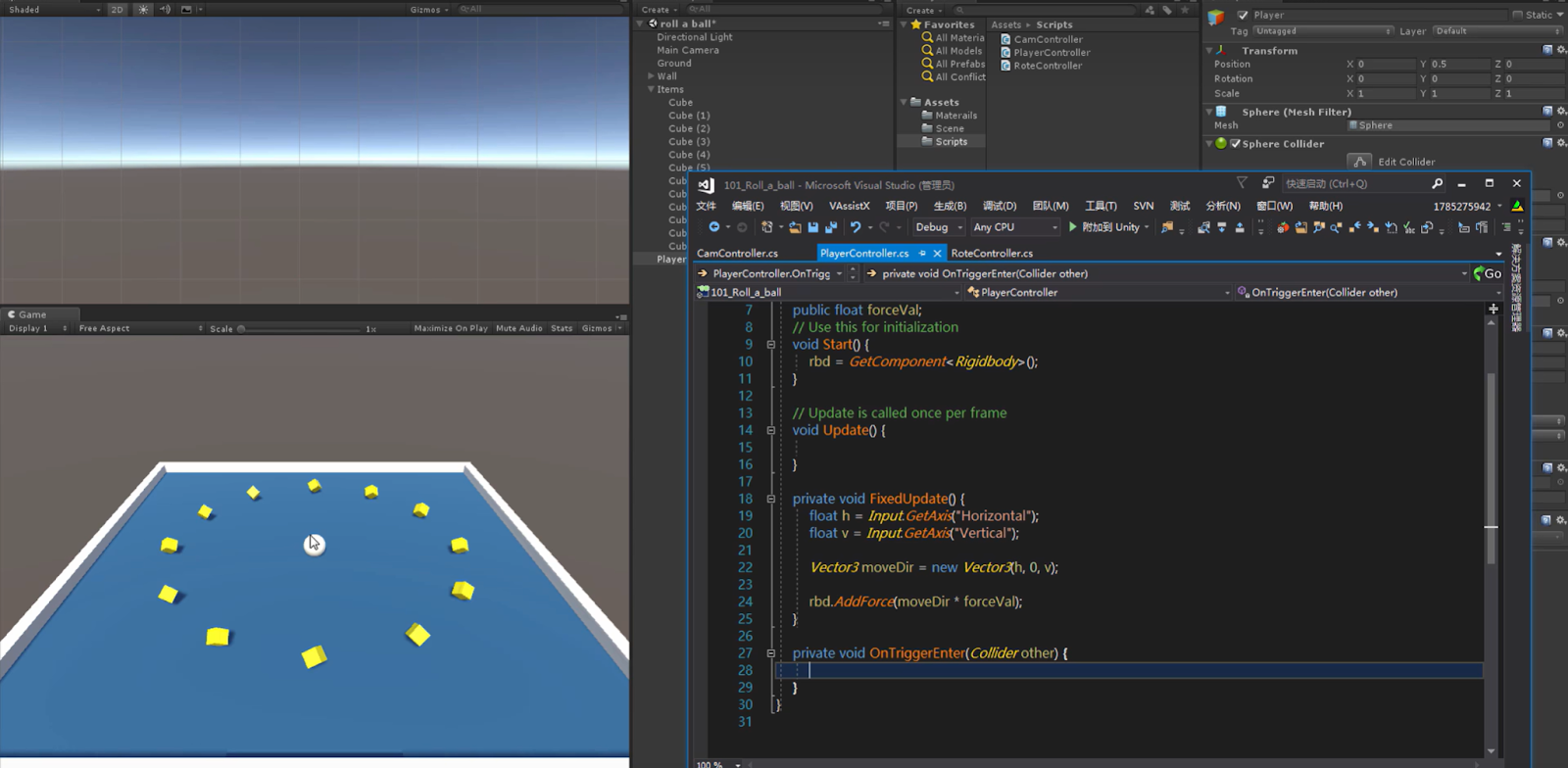
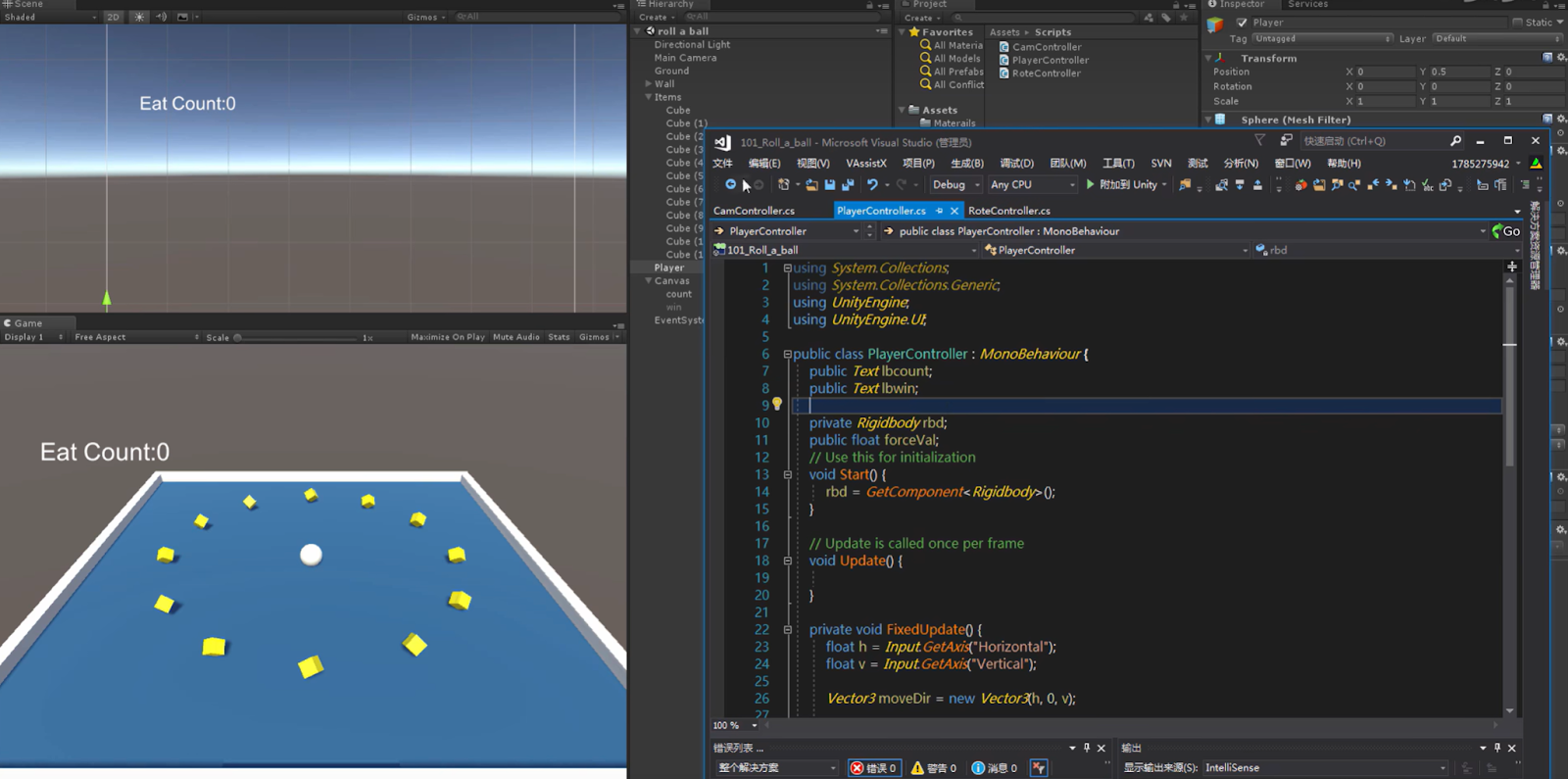
I use OnTriggerEnter in my script to identify collision objects and execute collection logic.
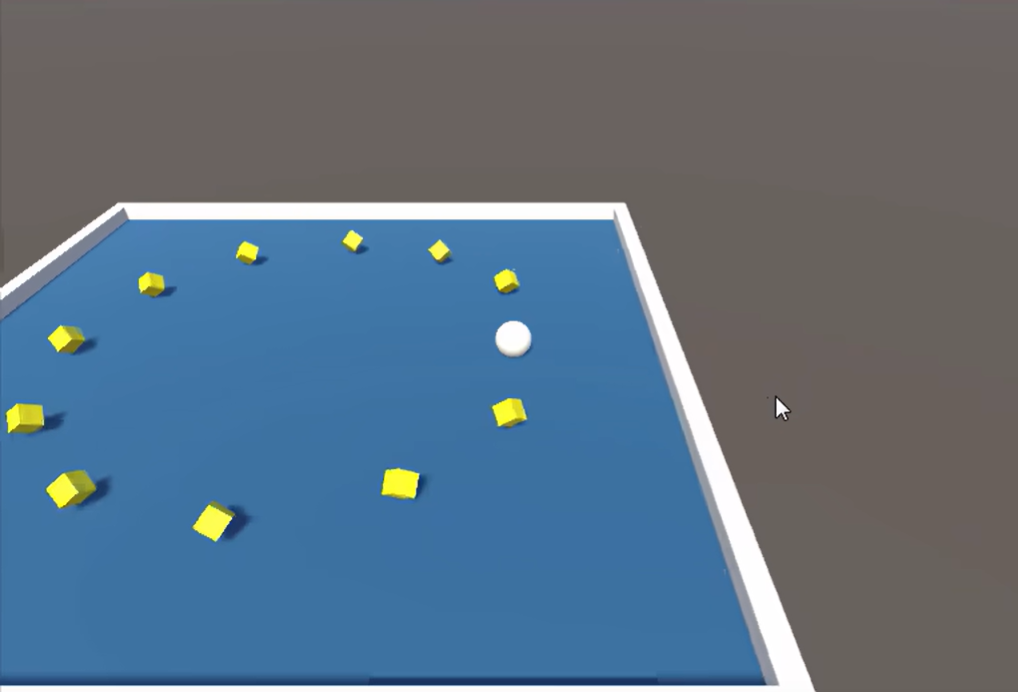
After I touched the PickUp in Play mode, the object was successfully collected and disappeared from the scene.
**3.3 Scoring and UI (Score UI) ** I created a Canvas and a Score Text in the scene to display the current score.
I bind the score variable to UI text in the script and refresh the displayed content after collection.
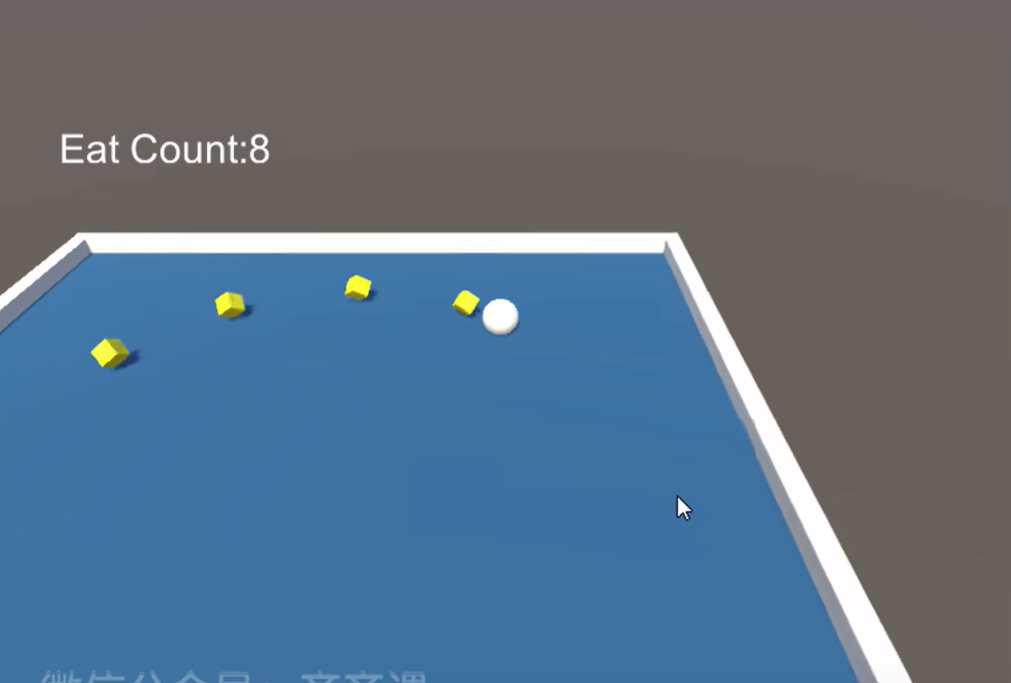
After I collect objects in Play mode, the Score value changes immediately and is displayed correctly.
4. Issues and Solutions
No errors preventing the process from occurring; the project was confirmed to be functioning correctly via Play and Console checks.